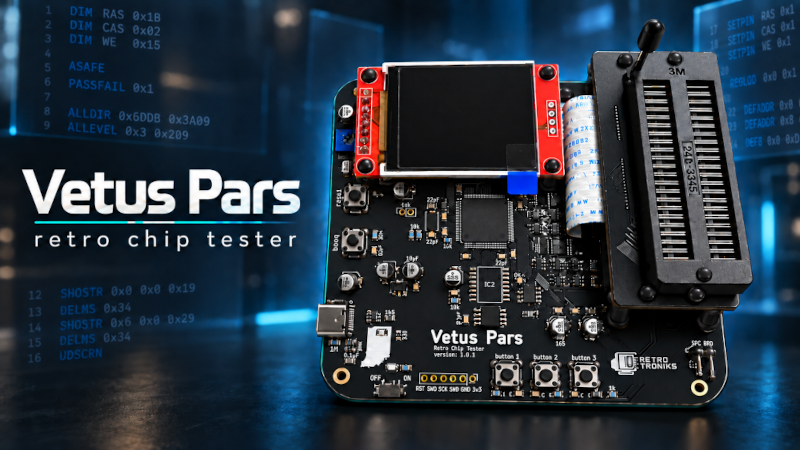
Everything related to Vetus Pars has been moved to one convenient place, which is right here. Welcome! I am pleased to announce that the updates to Vetus Pars firmware and VetusGUI have been completed. Believe me, I’m very pleased. There are now versions for OSX, Win64, and Linux. We are now on version 2.0.0 and I strongly recommend that you update your firmware and download the new GUI. The old firmware will no longer work with the new GUI and the old GUI will not work with the new firmware. Don’t worry though because I doubt that will be a problem. The updates are huge and I’m sure you’ll enjoy working with them even more.
This page’s layout:
- New firmware downloads and changes section
- How to upgrade the firmware PDF
- Using Vetus Pars General PDF
- How to use VetusGUI PDF
- Advanced Coding Manual PDF.
- Preparing your Vetus Pars for an add-on board
Advanced Users and Makers:
- Guide to building your own GUI for Vetus Pars
- Guide to building your own add-on boards.
- Example Atmega4809 project for add-on basics
- KiCad project for 30 pin SIMM add-on for build guidance.
Updates:
Sept. 14, 2026 – It is finally done. It has taken a while but as promised there is now a new version of VetusGUI including a version for Linux. Everything has gotten a complete makeover. The GUI now looks and reacts better. It is faster with uploads and the connection is now much more reliable. Failed uploads should be few and far between. There have been a few added opcodes, like SEVSEG which allows you to add number mimicking a 7-segment display, SHOWIMG which allows you to show your own images during a test that you have created. And add-on board functions are fully implemented and the 30 pin SIMM board is coming soon.
Not only that, but the GUI is just much friendlier. You no longer need to add a 0x00 for an argument that an opcode doesn’t use. All arguments now only need the exact number of arguments that it needs to be written. Arguments can now be in decimal, binary or hex. Speaking of which, there are now side tool bars for adding opcodes that give you a little more detail about the opcode and it will automatically send your argument to Vetus in decimal, or in whichever format that specific opcode requires, such as hex for address pins. And pins as well have been upgraded. You now have a mock chip with pins that you can use to select the pin you wish to use rather than typing them all. This is a massive help with address writing and opcodes such as ALLDIR and ALLEVEL. There are too many thing to go over in this short intro but if you read the following documents or just download and start trying things out I think you are going to love all of the changes. Without further ado, here are your downloads and docs.
I almost forgot: These are the same tests as before but they have been updated to the new GUI. The main difference is they have only the arguments each opcode needs. The older tests will now throw an error on the new GUI if an opcode doesn’t use the exact number of arguments. So these have had the extra arguments removed. It has no effect on anything already stored in Vetus Pars, these are for the new GUIs only. If you already have them then you can ignore them.
Upgrading Vetus Pars’ Firmware:
Using Vetus Pars:
Using VetusGUI:
Advanced Coding:
Preparing for Add-on Boards:
Advanced User and Makers:
This section is for users who wish to make their own GUI or their own add-on boards. Both should give you enough information to create what you wish, however; you may use the forums to ask about any problems you run into.
GUI Building Guide:
Building an Add-on Board:
And that, my friends, is everything. I hope you are as happy with the new features as I am. If you have any questions please feel free to ask on the forums.
Thank you,
Kelvin